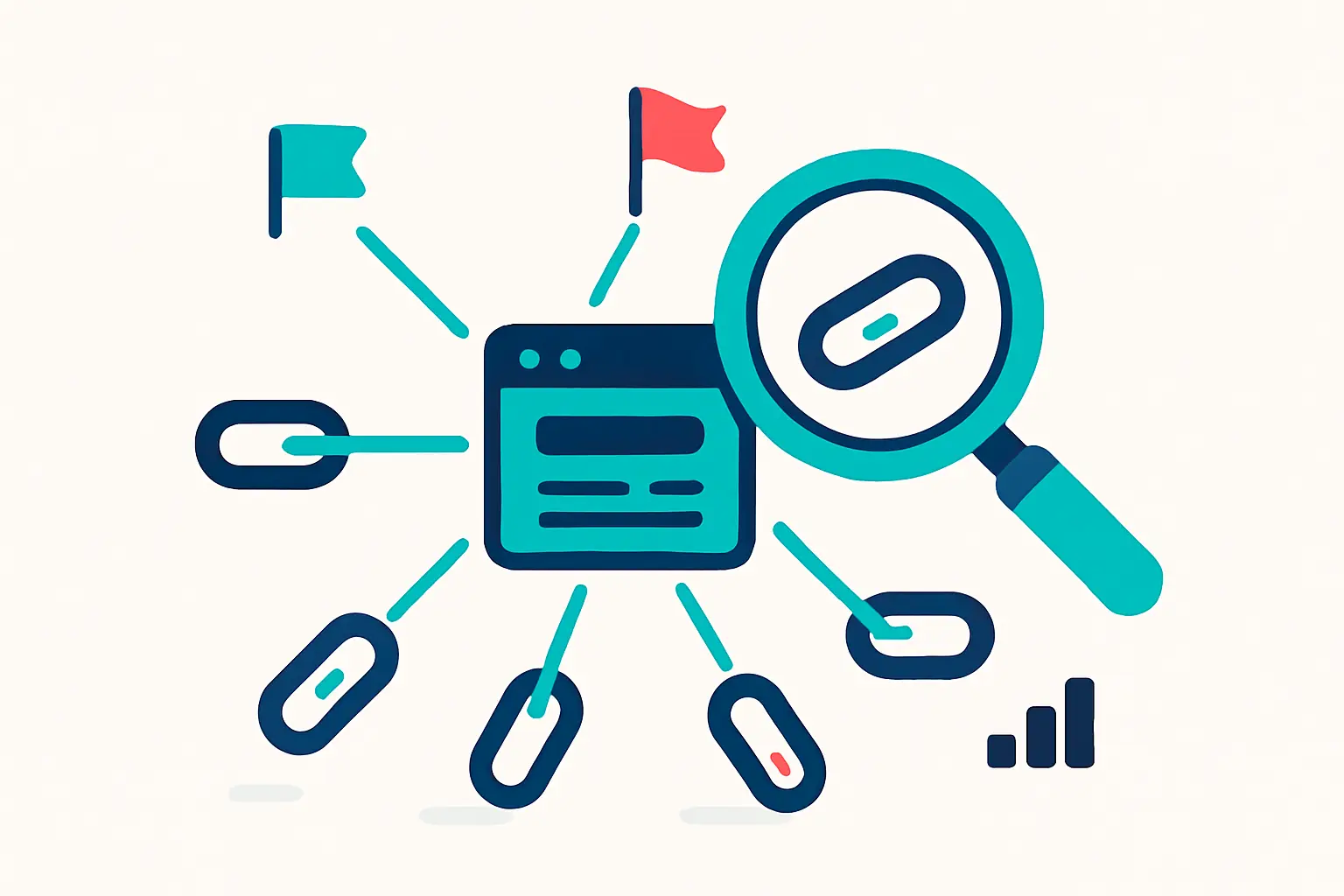
A backlink audit is the process of pulling every link pointing to your site, checking which ones are still live, classifying them by attribute (dofollow, nofollow, sponsored, ugc), and assessing their quality so you can decide what to keep, what to monitor, and what to act on. The goal is not to discover new links but to understand and protect the profile you already have. Done properly, a full audit takes two to four hours for a site with a few hundred referring domains, and the output is a prioritized action list: links to verify, anchors to watch, and a short disavow file if a manual action is involved.
Step 1: Pull Your Backlink Data
Before you can assess anything, you need the raw data. Three sources cover most situations.
Google Search Console (free, always start here). Open the Links report (left sidebar, “Links”), then under “External links” click “More” next to “Top linking sites.” From that table you can export to CSV or Google Sheets. The GSC Links report is truncated to 1,000 rows of representative examples, so for smaller sites it may cover your full profile; for larger sites you will need a paid tool to fill the gap. The columns you get: linking domain, target page, and anchor text (in separate sub-exports).
Ahrefs. In Site Explorer, run a Referring Domains export (not Backlinks) to get one row per domain. The Backlinks export gives one row per individual link, which inflates the count when a domain links to you from hundreds of pages. Ahrefs confirms that referring domains are the stronger ranking signal, so the referring-domain view is more actionable for most audits. Use the Backlinks export only when you need granular per-URL data.
Semrush. Pull from Backlink Analytics > Backlinks, with the “Referring Domains” toggle active. Export includes Authority Score, anchor text, dofollow/nofollow flag, and first-seen / last-seen dates.
If you only have access to GSC, that is enough to get started. The paid tools give you historical data, authority scores, and attribute classification at scale, but the audit logic is identical regardless of source.
What Each Source Gives You
| Data Source | Dofollow/Nofollow Flag | Authority Score | Anchor Text | Historical Data | Cost |
|---|---|---|---|---|---|
| Google Search Console | No | No | Yes (partial) | No | Free |
| Ahrefs | Yes | Yes (DR/UR) | Yes | Yes | Paid |
| Semrush | Yes | Yes (AS) | Yes | Yes | Paid |
Step 2: De-Duplicate to Referring Domains
Once you have your export, the first thing to do is collapse it to one row per referring domain. A single news site that links to five of your pages is one referring domain; treating it as five links gives you a distorted picture of your profile’s breadth.
In a spreadsheet, extract the domain from the linking URL (drop the path, keep the root domain), then deduplicate. Your working dataset is now a list of domains, each with: number of links from that domain, primary anchor text used, attribute (dofollow/nofollow), and any authority metric you have.
Two numbers matter most:
- Referring domain count: the size of your profile’s unique endorsement base.
- Dofollow referring domain count: the portion that actually passes link equity.
The ratio of dofollow to total referring domains gives you a quick read on how much of your profile is equity-passing. A profile where 80% of links are nofollow is not necessarily bad (think Wikipedia, forums, press mentions), but it does mean the equity-passing base is narrow.
Step 3: Verify Link Status
Link status checks answer a simple question: is this link still live, and does it still point where it used to? Links break silently. A referring domain may have removed the page, changed the URL, or replaced your link with a competitor’s. None of this shows up in a static export.
For each domain in your dataset, you want to know:
- Live (2xx): the linking page exists and your link is present.
- Dead (4xx / 5xx): the linking page is gone or erroring.
- Redirected (3xx): the page redirects, and link equity may or may not pass depending on the chain.
- Link removed: the page loads but your link is no longer on it.
- Attribute changed: the link was dofollow and is now nofollow.
For small exports (under 200 domains), you can check manually with a browser extension like Check My Links. At scale, a crawler or a tool that re-checks link status handles this automatically.
Lost links from strong referring domains are worth a recovery attempt: reach out to the site owner and ask whether the removal was intentional.
Step 4: Classify by Link Attribute
Every external link carries an attribute that tells Google how to treat it. Google’s link attribute documentation defines four values:
- dofollow (no explicit rel attribute): the linking site passes ranking credit. This is the equity-passing link you want.
- rel=”nofollow”: the linking site does not endorse the linked page; Google treats it as a hint, not a directive.
- rel=”sponsored”: marks paid placement, sponsorships, or affiliate links.
- rel=”ugc”: marks user-generated content such as forum posts or blog comments.
For a thorough treatment of how these attributes affect equity and what to look for in your profile, see our guide on dofollow vs nofollow links.
What to flag during classification:
- Sponsored links without the
rel="sponsored"attribute are a violation of Google’s spam policies. - A high share of ugc-attributed links (forum spam, comment spam) is a signal of unnatural acquisition patterns.
- Nofollow links from strong editorial sources (major press, Wikipedia) are normal and valuable for brand signals even without passing equity.
Step 5: Analyze Anchor Text Distribution
Anchor text is the visible, clickable text of a link. Your anchor text distribution tells Google what topics and keywords other sites associate with you. A natural profile has variety; an over-optimized one has too many links using the exact same keyword phrase.
Categories to count across your referring domain list:
- Branded: your brand name, domain, or recognizable brand variant (“BacklinkTower”, “backlinktower.com”).
- Exact match: the precise target keyword (“backlink audit tool”).
- Partial match: a phrase containing the keyword (“run a backlink audit”).
- Generic: “click here”, “this article”, “read more”.
- Naked URL: the raw URL as anchor.
A healthy natural profile is predominantly branded and naked URL anchors. The over-optimization signal that draws algorithmic scrutiny is an unusually high share of exact-match anchors. A pattern of 10 or more exact-match anchors concentrated on a single page is a Penguin risk factor; for most sites, exact-match anchors on external links should stay below 5% of the total profile.
If your audit reveals that 20-30% of anchors are exact-match for a commercial keyword, that is worth noting and monitoring. It does not necessarily require disavow action, but it is a signal to stop building more exact-match links and shift toward branded or natural anchor acquisition.
Step 6: Assess Link Quality and Identify What to Act On
Proprietary “toxicity scores” from tools are useful as a triage filter, but no score tells you definitively that a link is harming you. Semrush’s Toxicity Score runs from 0 to 100, with higher scores indicating links more likely to be risky; Ahrefs uses Domain Rating (DR) as a quality proxy. Use scores to prioritize which links to look at manually, not as automatic disavow triggers.
A practical link-quality framework uses four signals:
| Signal | Healthy | Concerning |
|---|---|---|
| Topical relevance | Linking page is about your industry or a clearly related topic | Linking page is completely off-topic (gambling, pharma, adult on an unrelated site) |
| Placement | Editorial in body content | Footer, sidebar, or sitewide |
| Domain traffic | Linking domain gets organic traffic | Domain has zero organic traffic (possible PBN) |
| Link acquisition pattern | Natural growth over time | Sudden spike from the same subnet or IP block |
Run through the links flagged by your tool as high-toxicity and apply this rubric manually. Most will turn out to be low-authority but not actually harmful; a small number will show multiple concerning signals simultaneously.
When to Disavow
The Google Search Central guidance on the disavow tool is direct: “In most cases, Google can assess which links to trust without additional guidance, so most sites will not need to use this tool.” The primary use case is recovering from a manual action for unnatural links, or preventing one when you know paid links or a link scheme is in your profile.
Since the December 2022 link spam update, Google’s SpamBrain system neutralizes the impact of unnatural links automatically for the vast majority of sites. Disavowing links that Google already ignores has no SEO benefit and carries the risk of accidentally disavowing good links.
Use disavow when: You have a manual action for unnatural links, you purchased links in the past that are still live, or you can identify a clear link scheme pointing at your site.
Do not disavow when: A tool gives a link a high toxicity score but there is no manual action and no clear paid-link evidence. Low-authority links that pass no equity are not harming you; Google ignores them.
When disavow is warranted, consolidate the domains to disavow into a text file with one domain:example.com entry per line, then submit via the Google Search Console disavow interface. For the complete file format and submission steps, see our guide on how to create a Google disavow file.
Step 7: Set Up Ongoing Monitoring
A one-time audit is a snapshot. Links change without notice: a previously dofollow link goes nofollow, a strong referring domain removes your link, or a 301 chain breaks. Scheduled rechecks catch these changes before they compound.
At minimum, schedule a manual link-status sweep quarterly, or after any significant Google core update or algorithm change. Sites actively building links or operating in competitive verticals benefit from monthly rechecks. A continuous monitoring setup alerts you the moment a link drops, a 404 appears on a linking page, or an anchor changes, so you can respond while recovery is still practical.
Backlink Audit Checklist
Use this checklist each time you run an audit:
- [ ] Export referring domains from GSC Links report and/or paid tool
- [ ] De-duplicate to one row per referring domain
- [ ] Note total referring domain count and dofollow referring domain count
- [ ] Run link-status verification (live, dead, redirected, removed)
- [ ] Classify each link by attribute (dofollow / nofollow / sponsored / ugc)
- [ ] Tally anchor text distribution by category; flag if exact-match exceeds 5% of profile
- [ ] Review high-toxicity flags manually using the four-signal quality rubric
- [ ] Determine whether disavow is warranted (manual action present or clear paid-link evidence)
- [ ] Document lost links from strong domains for potential recovery outreach
- [ ] Set next audit date (quarterly for most sites; monthly for high-volume link builders)
Frequently Asked Questions
How often should I audit my backlinks?
For most sites, quarterly is a practical cadence: frequent enough to catch problems before they compound, infrequent enough that the effort is proportional to the risk. Sites actively running outreach campaigns or in competitive verticals benefit from monthly audits. After any major Google algorithm update, run a link-status check on your strongest referring domains regardless of scheduled timing.
What is the difference between a backlink audit and a link audit?
The terms are interchangeable in common usage. Some practitioners use “link audit” to mean a broader review covering both inbound backlinks and outbound links from your own site; “backlink audit” typically refers specifically to inbound links. This guide covers the inbound profile: the links other sites are pointing at you.
Do I need a paid tool to audit my backlinks?
No. Google Search Console’s Links report is free and gives you referring domains, target pages, and anchor text for your site. Its main limitation is the 1,000-row cap on the referring-domains export, which means larger sites will have an incomplete picture. Paid tools like Ahrefs and Semrush provide more complete coverage, historical data, attribute classification, and authority scores, which makes them worth using if you manage a site with more than a few hundred referring domains.
Should I disavow toxic backlinks?
Only in specific circumstances. Google’s guidance is that most sites will not need the disavow tool because SpamBrain automatically neutralizes the impact of unnatural links. Disavow is warranted when you have received a manual action for unnatural links, when you have knowingly purchased links that are still live, or when you can identify an active link scheme in your profile. High toxicity scores from a tool alone are not sufficient reason to disavow; manually verify the link looks paid or manipulative before acting.
What is a healthy backlink profile?
There is no single right answer, but a healthy profile shows diversity across several dimensions: referring domains from multiple industries and publication types, a majority of branded and natural anchor text with a small share (under 5%) of exact-match keyword anchors, a mix of dofollow and nofollow links that reflects normal editorial behavior, and steady growth over time rather than sudden spikes. The number of links matters less than the quality and relevance of the referring domains.
How do I find lost backlinks?
In Ahrefs Site Explorer, use the Backlinks report filtered to “Lost” to see links that were live on a previous crawl but are no longer present. In Semrush Backlink Analytics, filter by Status > Lost. In Google Search Console alone, you cannot directly identify lost links because the export does not include historical data. Once you identify lost links from strong domains, check whether the page still exists and whether your link was replaced or removed, then decide whether a recovery outreach message is worth sending.
Leave a Reply